
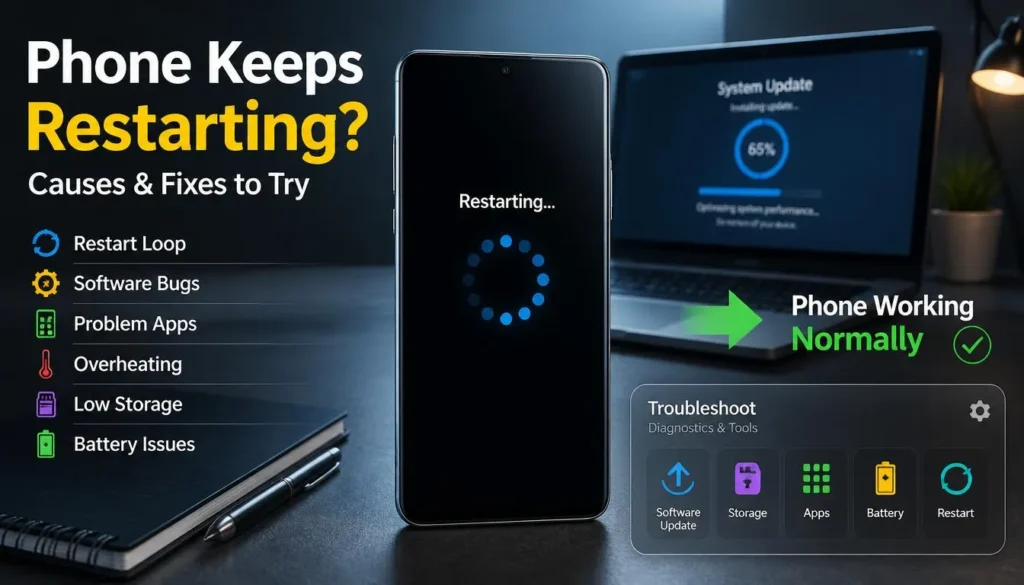
Phone Keeps Restarting on Its Own? Here’s Why
A phone that keeps restarting can make even simple tasks feel impossible. One minute you are replying to a message; the next, the screen goes black and the device boots again. In many cases, the cause is a software conflict, a faulty app, low storage, overheating, or an enabled automatic restart setting, not permanent hardware damage.
Start with the least disruptive fixes and move to the more serious ones. Do not factory-reset the phone immediately; first check whether a recent app, system update, battery issue, or scheduled setting is causing the restarts.
Quick Diagnosis Table
1. Check Whether Automatic Restart Is Enabled
Some Android phones can restart themselves as part of maintenance or device optimization. Samsung Galaxy phones are one example: features such as Auto Restart or automatic optimization can restart the phone when it is not being used.
If the restart happens overnight or at a predictable time, check this setting first. It may look like a fault, even though the phone is following a scheduled maintenance rule.
On many Samsung phones, go to Settings > Battery and device care and look for Auto optimization, Auto restart, or Restart when needed. Turn off scheduled restart options, then use the phone normally for a few days.
Other Android manufacturers use different names. If you can’t find the option manually, search Settings for “restart,” “optimization,” or “schedule.”
An iPhone does not normally have a user-facing scheduled restart feature. If an iPhone restarts at random, the cause is more likely an app, an iOS issue, battery condition, or a hardware fault.
2. Restart It Once Manually
A deliberate restart can clear a stuck process that is triggering repeated crashes. This is different from waiting for the phone to restart on its own.
On most Android phones, press and hold the Power button, then choose Restart. If the device is frozen, hold the Power button for around 20 to 30 seconds until it reboots.
For iPhone X and later, press and hold either Volume button together with the Side button until the power-off slider appears. Turn the phone off, wait about 30 seconds, then hold the Side button until the Apple logo appears.
If the phone cannot stay on long enough to complete a normal restart, move to the next steps. Frequent reboots can prevent apps and system services from closing properly, so don’t keep forcing restarts unless the device is frozen.
3. Remove Recently Installed or Updated Apps
A faulty third-party app is one of the most common reasons a phone keeps restarting. It may be poorly optimized for your phone’s software version, conflict with another app, use excessive memory, or crash a system service.
Think back to when the problem started. If it started shortly after you installed a game, cleaner app, launcher, antivirus app, VPN, keyboard, camera utility, battery saver, or unofficial app package, remove that app first.
On Android, open Settings > Apps, select the suspected app, then tap Uninstall. You can also uninstall it through Google Play by opening the app’s listing.
On iPhone, touch and hold the app icon, select Remove App, then choose Delete App. If you are unsure, remove the most recently installed apps one by one and observe whether the restarts stop.
Avoid installing aggressive “phone cleaner” or “RAM booster” apps while troubleshooting. Modern Android and iPhone software already manages memory automatically, and these apps can sometimes cause more instability than they fix.
4. Test the Phone in Safe Mode
Safe Mode is one of the most useful diagnostic tools on Android. It temporarily disables downloaded third-party apps and runs only the essential system software.
If your phone works normally in Safe Mode, a downloaded app is probably responsible. If it still restarts in Safe Mode, the cause is more likely to be Android itself, damaged storage, the battery, or another hardware issue.
On many Android phones, open the power menu, then press and hold Power off until the Safe Mode option appears. Confirm it, and the device will reboot with “Safe mode” shown near the bottom of the screen.
The exact method varies by phone. Samsung typically allows you to press and hold Power off in the power menu, then tap Safe mode.
Use the phone in Safe Mode for a while. If it stops restarting, restart normally and gradually uninstall recent apps, starting with the most suspicious one.
iPhones do not offer a comparable consumer Safe Mode option. For an iPhone, focus on updating iOS, updating or removing recently installed apps, checking battery health, and contacting Apple Support if restarts continue.
5. Free Up Storage Space
Very low storage can make a phone unstable. Android and iOS both need free space for temporary files, app updates, system processes, camera processing, and software installations.
Check storage from Settings > Storage on Android. On iPhone, go to Settings > General > iPhone Storage.
Try to keep several gigabytes free, especially before installing a major operating-system update. Remove offline downloads, old screen recordings, duplicate files, unused apps, and large message attachments before assuming the phone has a deeper fault.
If you need a safe cleanup method, start with downloads, streaming media, app cache, and chat attachments before touching photos. That reduces the risk of losing anything important while giving the system more room to work.
6. Install System and App Updates
A restart problem can appear after a software update, but a later patch can fix it. Phone manufacturers regularly issue stability and security improvements that address crashes, modem issues, battery bugs, and app compatibility problems.
On Android, open Settings > System > Software update or search Settings for “update.” Samsung users can usually go to Settings > Software update > Download and install.
On iPhone, open Settings > General > Software Update. Install the latest available iOS version if the phone can remain powered on long enough.
Update your apps afterward. An old app may not be compatible with a newer operating system, which can lead to crashes and repeated reboots.
If restarts began just after a major update, give the phone a short period to finish background optimization and syncing. If the problem continues for several days, inspect recent app updates and consider removing any app that shows abnormal battery use, overheating, or crashing.
7. Check for Overheating, Cases, and Accessories
Phones may shut down or restart to protect their internal components from excessive heat. Gaming, long video calls, navigation, mobile hotspot use, 4K recording, wireless charging, and weak mobile signal can all raise temperatures quickly.
Remove the phone case if it feels unusually warm. Disconnect external batteries, wired chargers, magnetic accessories, USB hubs, and game controllers, then let the phone cool naturally on a hard surface away from direct sunlight.
Do not place a hot phone in a refrigerator or freezer. Sudden temperature changes can create condensation and damage internal components.
If the phone only restarts while charging, test a different certified cable and charger. Damaged accessories, poor-quality power adapters, or debris in the charging port can cause unstable charging behavior.
If the phone restarts only during intense tasks, it may indicate heat or battery strain. Reduce graphics settings, stop charging while gaming, and avoid using the phone under blankets, pillows, or in a hot car.
8. Check Battery Health and Power Problems
A degraded battery can cause random restarts, especially when the battery percentage is low or the phone is under heavy load. Older batteries may struggle to provide enough power during gaming, camera use, mobile data use, or cold weather.
On iPhone, go to Settings > Battery > Battery Health & Charging. Check the maximum capacity and see whether iOS recommends service.
Android battery-health menus vary by manufacturer and model. Samsung users can open Samsung Members and use the built-in Phone Diagnostics feature, while some newer Android phones show battery information directly under Battery settings.
Watch for these signs:
-
The phone shuts down even though it shows 10% to 30% charge
-
The battery percentage drops in large jumps
-
The phone restarts during camera use, gaming, or charging
-
The device overheats without heavy use
-
The back panel is lifting, or the screen is separating from the frame
A swollen battery is a safety issue. Stop using the phone, do not attempt to puncture or press the device, and arrange service through the manufacturer or an authorized repair provider.
9. Reset Settings Before Factory Resetting
If the restarts continue and you have ruled out apps, storage, updates, heat, and battery issues, reset network or system settings before wiping the entire phone. This can correct damaged Wi-Fi, Bluetooth, mobile network, permission, or configuration settings without necessarily deleting personal files.
On iPhone, go to Settings > General > Transfer or Reset iPhone > Reset. Options include resetting network settings, keyboard dictionary, and location and privacy settings.
Android reset menus differ by manufacturer. Search Settings for “Reset options” or “Reset network settings.” A network reset usually removes saved Wi-Fi networks, Bluetooth pairings, and certain mobile settings, so make sure you know your Wi-Fi password first.
Test the phone after each reset. If the issue disappears, you don’t need to perform a factory reset.
10. Factory Reset Only as a Last Resort
A factory reset can resolve persistent software corruption, but it should be your final software step. It erases apps, accounts, settings, local files, messages, and photos that are not backed up.
Before resetting, back up important data to Google One, Google Photos, Samsung Cloud, iCloud, or a computer. Confirm the backup is complete before continuing.
On Android, open Settings, search for Factory reset, then follow the instructions for Erase all data. On iPhone, open Settings > General > Transfer or Reset iPhone > Erase All Content and Settings.
After resetting, do not restore every app immediately. Set up the phone, install essential updates, and use it briefly before reinstalling apps one at a time. If the restarts return after installing a particular app, you have likely found the cause.
If the phone keeps restarting after a clean factory reset with no third-party apps installed, the problem is more likely hardware-related. At that point, contact the manufacturer or an authorized repair center.
Fix Summary
FAQ
Why does my phone keep restarting by itself?
The most likely causes are an unstable app, a scheduled restart setting, low storage, outdated software, overheating, or a weak battery. Start by checking whether the restart happens at a consistent time, after using a particular app, or during charging.
Can a bad app make a phone restart?
Yes. An incompatible or poorly coded app can crash repeatedly, use excessive memory, interfere with system services, or trigger instability. Android Safe Mode is particularly useful because it temporarily disables third-party apps.
Why does my Samsung phone restart every night?
Samsung phones may have Auto Restart or automatic optimization enabled. Check Settings > Battery and device care for scheduled restart settings, and disable them if you don’t want the phone to reboot automatically.
Why does my iPhone keep restarting and showing the Apple logo?
Repeated Apple logo appearances can indicate a software crash, failed update, low storage, battery problem, or hardware issue. Update iOS and apps, check battery health, and seek Apple Support if the problem continues.
Will a factory reset stop my phone from restarting?
It can fix a serious software problem, but it will not repair a failing battery, damaged charging port, liquid damage, or another physical fault. Back up your data and use a factory reset only after simpler fixes fail.
When should I get my phone repaired?
Seek repair help if the phone restarts after a factory reset, has visible battery swelling, overheats often, shuts down unexpectedly at moderate battery levels, or restarts even in Android Safe Mode. Those signs can point to a hardware or battery problem.
Read also: Phone Battery Draining Fast? 8 Real Fixes That Work
Final Thoughts
If your phone keeps restarting, don’t panic or assume you need a new device right away. Start with the easy checks: automatic restart settings, recent apps, free storage, software updates, and overheating.
If those steps don’t help, check battery health and back up your data before trying a factory reset. If the issue persists after a clean reset, contact the manufacturer or an authorized repair provider.