
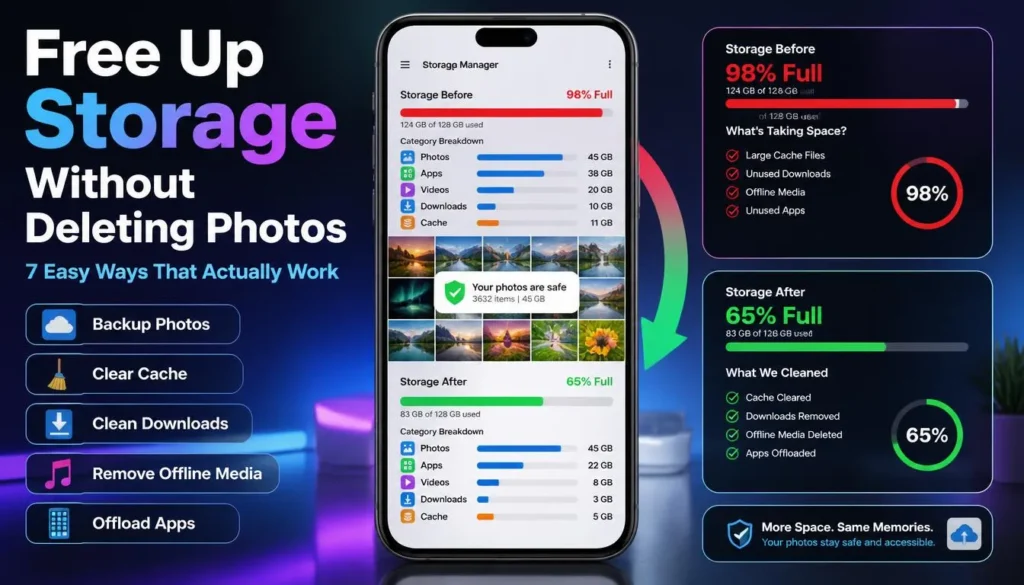
How to Free Up Storage on Your Phone Without Deleting Photos on Android and iPhone
When your phone says storage is full, it can feel as though your photos are the only thing left to sacrifice. They usually are not. Android and iPhone both include tools that can recover meaningful space from apps, downloads, message attachments, temporary files, and offline media while keeping your photo library intact.
The important step is to identify what is consuming storage before deleting anything. A crowded camera roll may be part of the problem, but cached app data, WhatsApp videos, streaming downloads, and forgotten files often account for most of it.
Start With a Storage Check
Open your phone’s storage dashboard first. It shows which categories are taking up the most space and helps you avoid deleting important files blindly.
On Android, go to Settings > Storage. Samsung users can usually find it under Settings > Battery and device care > Storage, while Pixel phones offer a Free up space option under Settings > Storage.
On iPhone, open Settings > General > iPhone Storage. Apple lists installed apps by size and recommends offloading unused apps or reviewing large attachments.
If Photos is not the largest category, do not start there. Focus on items you can remove safely without affecting your memories.
1. Offload or Remove Unused Apps
Apps can take up far more space than their download size suggests. Games, social media platforms, travel apps, and shopping apps often collect cached files, saved media, and documents over time.
On an iPhone, open Settings > General > iPhone Storage, select an app, then tap Offload App. This removes the app itself while preserving its documents and data, so reinstalling it later should restore your information.
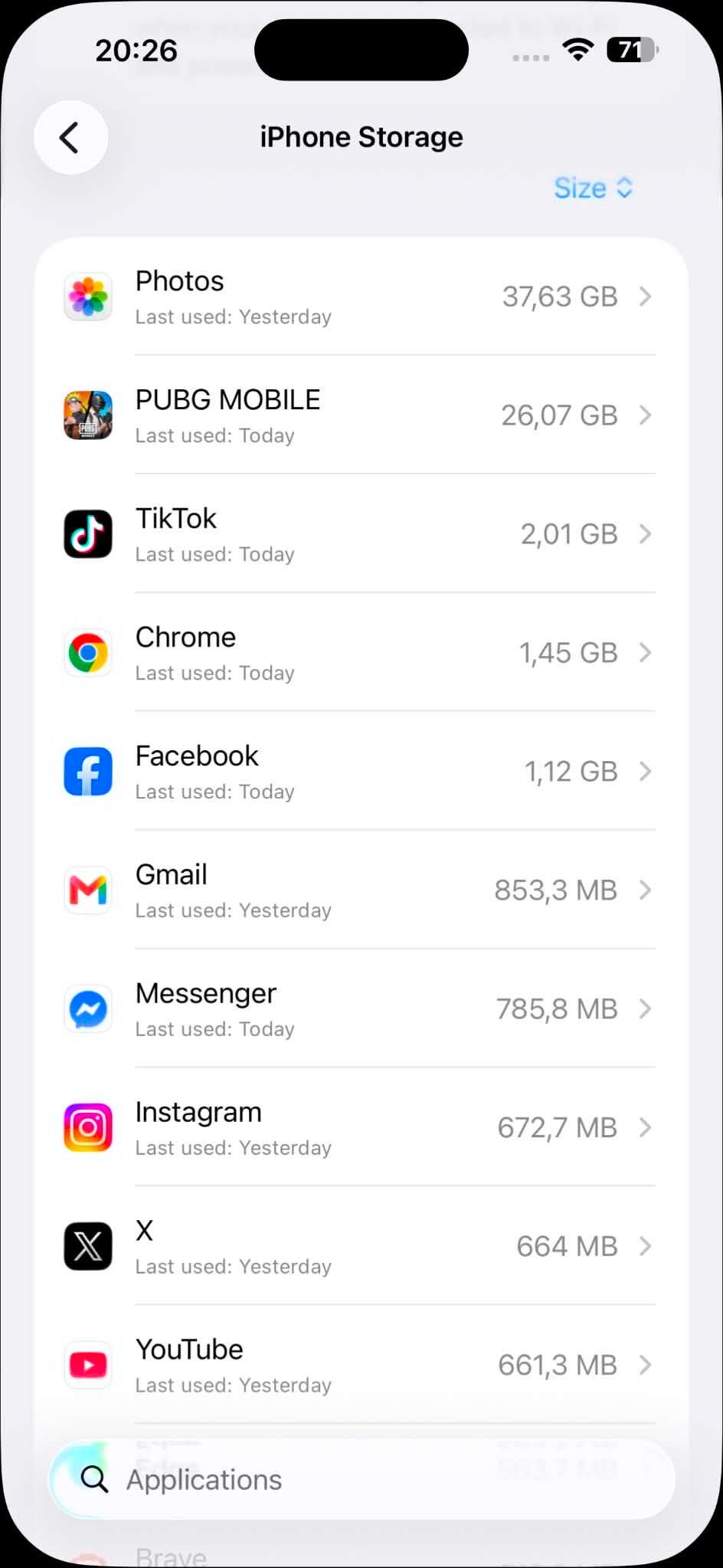
Not all Android phones offer the same offloading feature. Instead, remove apps you no longer use from the Google Play Store or through Settings > Apps. Reinstall them later if you need them again.
Start with apps you have not opened in several months. Old games and one-time utility apps are often the fastest way to reclaim a few gigabytes.
2. Clear Cache and Temporary App Files
Cached files help apps load content faster, but they can grow quietly in the background. Browsers, social media apps, streaming platforms, and messaging apps are common storage offenders.
On Android, go to Settings > Apps, choose an app, then tap Storage or Storage & cache. Select Clear cache rather than Clear data unless you are prepared to sign in again and reset the app.
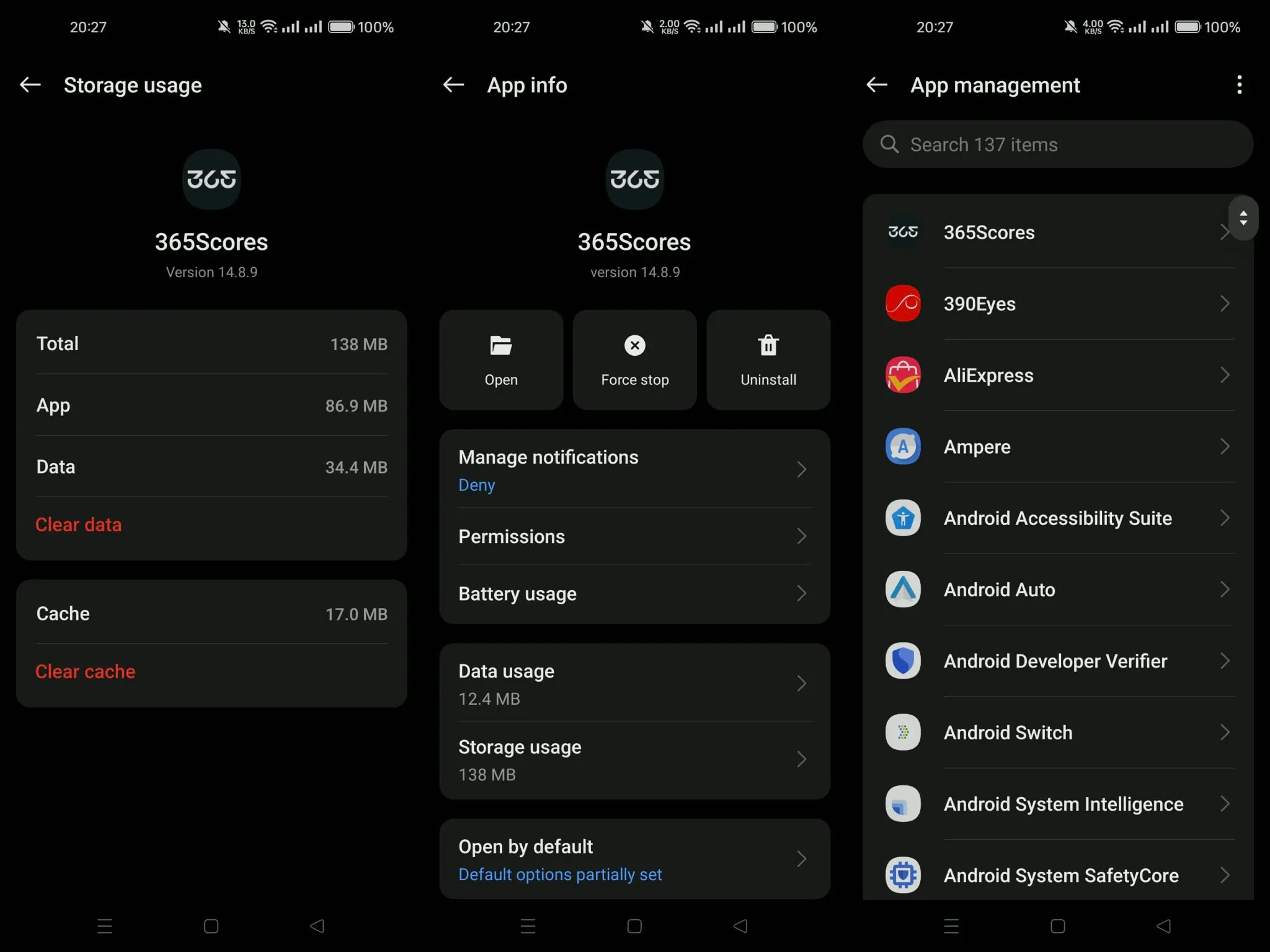
Clearing cache is particularly useful for Chrome, Instagram, TikTok, Facebook, Spotify, YouTube, and large shopping apps. It removes temporary files but normally leaves your account, saved settings, and personal content untouched.
On iPhone, cache management is less centralized. Some apps include an in-app option to clear downloaded files or cached data, while others may require deleting and reinstalling the app to fully remove temporary storage.
Before removing an app, check whether it contains offline downloads or unsynced files. A note-taking or editing app may store local content that hasn’t been backed up yet.
3. Clean Out Downloads
Downloads are easy to overlook because they do not always appear in your photo library. Old PDFs, ZIP files, installation packages, shared documents, and downloaded videos can sit in your Files app for months.
On iPhone, open the Files app and review the Downloads folder. On Android, use the built-in file manager or Files by Google, then sort items by size to find the biggest files first.
Remove old ticket PDFs, duplicate documents, outdated installers, and videos you no longer need. If you are unsure about a file, move it to cloud storage or a computer before deleting it.
Check browsers too. Chrome, Safari, Samsung Internet, and Firefox can all retain downloaded files that are easy to forget.
4. Delete Offline Streaming Downloads
Offline downloads from streaming services can take up a lot of space. A few high-quality downloaded films can use more storage than hundreds of photos.
Review downloaded content in Netflix, YouTube, Prime Video, Disney+, Spotify, YouTube Music, Audible, and podcast apps. Remove watched episodes, old playlists, completed audiobooks, and content downloaded for trips that have already ended.
Podcast apps deserve particular attention. Some automatically keep every episode until you manually remove it, which can gradually fill your phone without warning.
If your music or video app has a download-quality setting, consider reducing it. Standard-quality offline media often uses far less storage while remaining perfectly acceptable for everyday listening or viewing.
5. Manage WhatsApp, Telegram, and Message Media
Chat apps can become a hidden storage problem because group conversations collect photos, videos, voice notes, GIFs, stickers, and forwarded files every day. The media may be useful at first, but it rarely needs to remain on your phone forever.
In WhatsApp, open Settings > Storage and Data > Manage Storage. The app groups large files, frequently forwarded media, and chat-specific attachments so you can review them before deleting them.
Telegram users should open Settings > Data and Storage > Storage Usage. You can clear cached images, videos, and files without deleting them from the original chat or channel, as long as they remain available online.
On an iPhone, open Settings > General > iPhone Storage > Messages. Review large attachments and media-heavy conversations instead of deleting entire message threads that may contain important information.
To prevent storage from filling again, reduce automatic media downloads in busy group chats. Setting downloads to Wi-Fi only is often a sensible compromise.
6. Use Cloud Photo Storage Safely
If photos and videos occupy most of your storage, cloud backup can make a major difference without forcing you to delete your memories. The key is to confirm that the backup has finished before removing local copies.
iPhone users can enable iCloud Photos, then choose Optimize iPhone Storage. Full-resolution originals stay in iCloud, while the phone keeps smaller local versions that use less space.
To turn it on, go to Settings > Your Name > iCloud > Photos. Enable photo syncing, then select Optimize iPhone Storage.
Android users can back up their gallery through Google Photos. Once backup is complete, use the Free up space option in Google Photos to remove local copies already saved to your Google account.
Do not use this option while backup is paused or incomplete. Check several recent photos and videos first to confirm that they are available from the cloud.
7. Remove Duplicate Photos and Screenshots
You do not need to delete your important photo library to reclaim space. Duplicates, repeated screenshots, accidental burst shots, and saved social media images are a safer place to start.
On iPhone, open the Photos app and look under Utilities > Duplicates. Apple can identify identical or nearly identical photos and videos, then merge them while preserving the best available version and its metadata.
Android users can use Files by Google to find duplicate files, old screenshots, and large unused items. Google’s cleanup suggestions are useful, but review each item before deleting it in case a similar-looking file is an edited version you still need.
Screenshots tend to build up quickly. Review them monthly, especially after shopping, troubleshooting, traveling, or saving temporary information from social apps.
8. Empty Recently Deleted Folders
Deleting something doesn’t always free up storage immediately. Photos, files, and cloud backups frequently move items to a Recently Deleted or Trash folder, where they remain for a limited period.
Check the Recently Deleted folder in Apple Photos, Google Photos, Files, Google Drive, and any other cloud-storage app you use. Emptying those folders can recover space right away.
Be careful before confirming permanent removal. Once you empty the trash folder, recovery may not be possible.
Browser data can also be worth clearing. Safari, Chrome, Samsung Internet, and Firefox can store temporary images, website files, and download records that gradually consume storage.
Android and iPhone Storage Fixes Compared
What Not to Delete
Avoid deleting folders you don’t recognize, especially on Android. System folders, app databases, and Android media directories may contain files an app needs to work correctly.
Do not tap Clear data unless you understand what it removes. That option can sign you out, delete downloaded content, reset app settings, or erase unbacked-up information.
Skip unknown “cleaner” apps that promise to free large amounts of storage automatically. Your phone’s built-in storage tools, Google Files, Google Photos, iCloud, and the official settings menus are usually safer and more transparent.
Most importantly, do not delete local photos until you have verified cloud backup. Open Google Photos or iCloud Photos, check your latest items, and make sure they are fully synced before using any free-space tool.
Read also: Samsung One UI 9 Release Date, Features, and Eligible Phones
FAQ
How do I free up storage on phone without deleting photos?
Remove unused apps, clear cache, delete old downloads, manage chat attachments, remove offline media, and empty trash folders. If photos take up most of the storage, back them up to Google Photos or iCloud Photos and use the built-in storage optimization feature.
What is taking up so much storage on my phone?
Common causes include apps, cached files, message attachments, downloaded videos, offline maps, podcasts, and streaming media. Check the storage breakdown in Settings to identify the category using the most space.
Does clearing cache delete anything important?
Usually, no. Clearing cache removes temporary files that apps can recreate later. It usually doesn’t remove account information, messages, or personal files, though clearing app data is different and can reset an app completely.
Will Google Photos free up storage on Android?
Yes, but only after your photos and videos are backed up successfully. The Free up space option removes local copies that are already stored safely in your Google Photos library.
Will iCloud Photos free up space on iPhone?
Yes. Turn on iCloud Photos and choose Optimize iPhone Storage. Your full-resolution originals remain in iCloud, while the iPhone stores smaller versions locally.
Why does my phone storage fill up again?
Apps create new cache files, message apps download new media, and streaming services may keep offline downloads. Review storage regularly and reduce automatic downloads for video-heavy apps and group chats.
Final Thoughts
Knowing how to free up storage on your phone doesn’t mean deleting the photos and videos you care about. In most cases, a quick cleanup of apps, cache, downloads, chat media, and offline content creates enough room for updates and new files.
Start with your phone’s storage dashboard, change one category at a time, and confirm your cloud backup before deleting local copies of photos. That keeps your memories safe while giving your device room to work properly.