
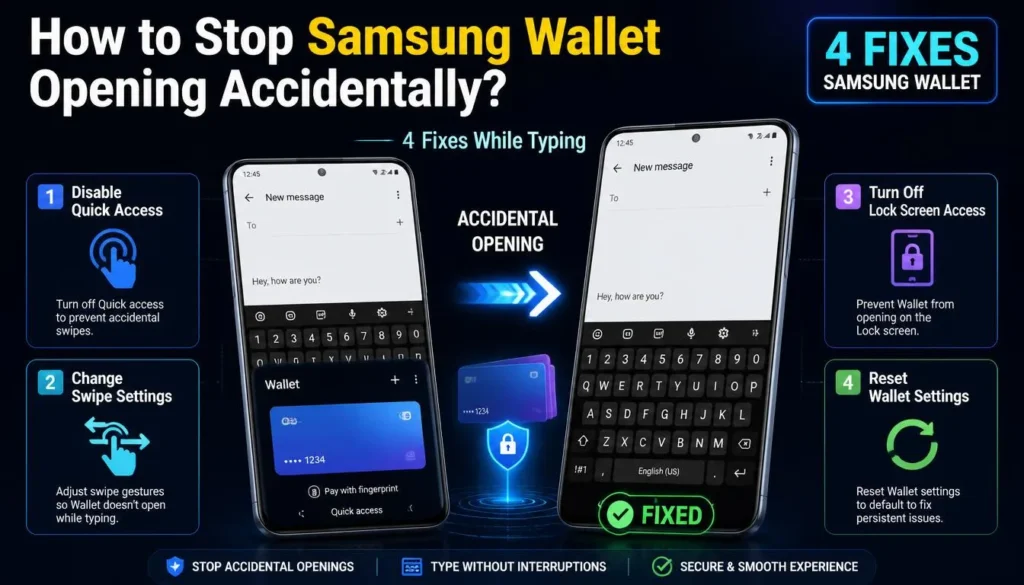
You are typing a message, and suddenly Samsung Wallet slides up over your screen. You close it, keep typing, and a few seconds later it happens again. If you have a Galaxy phone, this is a common annoyance, and it happens most often when you press the spacebar quickly or use gesture navigation.
The good news is that Samsung Wallet opening accidentally while typing is easy to stop. This guide shows you four fixes, starting with the simplest, and you can keep the Wallet features you actually use.
Quick Answer: Stop Samsung Wallet Opening Accidentally While Typing
- Open Samsung Wallet and tap the three-dot menu (or Menu tab), then Settings.
- Tap Quick access, then Swipe up gesture.
- Turn off Home screen. You can leave Lock screen on if you still want fast access when the phone is locked.
- If it still opens, raise or resize the keyboard so the spacebar is farther from the bottom edge.
Why Samsung Wallet Keeps Opening While You Type
Samsung Wallet has a Quick access feature. When it is on, swiping up from the bottom of the screen opens your cards. Samsung’s own support pages say that if Wallet keeps opening by accident, you should turn this shortcut off.
The problem happens because of where your thumbs are:
- The areas overlap. The spacebar sits very close to the bottom edge of the screen, which is the same place the swipe-up gesture starts.
- Fast typing looks like a swipe. When you tap the spacebar quickly, your thumb can slide slightly upward. The phone may read this small movement as a swipe-up gesture.
- Gesture navigation makes it more likely. With swipe gestures turned on, the bottom edge of the screen is already used for system navigation, so there is very little space between typing and swiping.
The fixes below either turn off the gesture where you do not need it or move your typing away from the trigger area.
Solution 1: Turn Off the Swipe Up Gesture on the Home Screen
This is the most effective fix. It stops Wallet from opening while you type or move around the home screen, but it keeps the feature available on the lock screen.
- Open the Samsung Wallet app.
- Tap the three-dot menu or the Menu tab, then tap Settings.
- Tap Quick access, then tap Swipe up gesture.
- Turn off the switch next to Home screen.
- Leave Lock screen and Screen off turned on if you want them, or turn them off as well.
Samsung lists these three locations on its support page for managing Quick access cards. Menu names can vary a little depending on your One UI version, region, and Wallet app version. Some versions call this option Quick access and default card.
If the accidental swipes continue, or if you rarely use the swipe gesture, you can switch it off completely and open Wallet with the side button.
- In Samsung Wallet, go to Settings > Quick access > Swipe up gesture and turn off all the switches.
- Open your phone’s Settings and go to Advanced features > Side button.
- Turn on Double press.
- Select Samsung Wallet quick access from the list.
Now a quick double press of the side button opens Wallet when you need to pay, and nothing happens when you type. Your NFC payments keep working as usual.
Solution 3: Move the Keyboard Away from the Bottom Edge
If you want to keep the swipe gesture, you can change the keyboard so your thumb is less likely to touch the trigger area.
- Open Settings > General management > Samsung Keyboard settings.
- Tap Size and transparency (the name may differ slightly on your phone).
- Use the handles to resize the keyboard, or move the keyboard higher on the screen if your version allows it.
- Tap Done and type a few messages to test the change.
A keyboard with more space between the spacebar and the bottom edge makes accidental swipes much less common. If you use the Gestures navigation style, you can also try switching to the Buttons style under Settings > Display > Navigation bar, then test whether the problem stops.
Solution 4: Fine-Tune the Gestures with Good Lock (Optional)
Good Lock is a free Samsung app that adds extra customization modules. It is only available in some regions, and its modules and options change with each update, so treat this as an extra step rather than a first choice.
- Open the Galaxy Store and search for Good Lock.
- Install it, then open the modules list.
- Look for Keys Cafe to adjust the keyboard layout and key sizes.
- Look for NavStar to customize the navigation bar and its behavior.
- Make small changes, then test them while typing.
Do not worry if a module is missing on your phone. Solutions 1 to 3 solve the problem for most users.
Still Seeing Samsung Wallet Opening Accidentally While Typing?
If Wallet still appears when you do not want it, check these points:
- Check the side button shortcut. Go to Settings > Advanced features > Side button and see whether a double press is assigned to Wallet. Change it if you press the button by mistake.
- Update the apps. Update Samsung Wallet in the Galaxy Store and install any pending One UI update.
- Restart your phone. A restart makes sure the new settings are applied.
- Check your screen protector or case. A thick edge can make your thumb slide when you press near the bottom of the screen.
Samsung also explains how to open and disable the shortcut on its Samsung Wallet support page.
Frequently Asked Questions
Does turning off Quick access stop NFC payments from working?
No. Contactless payments still work. You can open the Wallet app manually, use a side button shortcut, or use the swipe-up gesture on the lock screen if you left it on.
Can I use Google Wallet instead of Samsung Wallet?
Yes. You can turn off Samsung Wallet’s swipe gesture and choose Google Wallet as your default contactless payment app under Settings > Connections > NFC and contactless payments.
Why does Samsung Wallet still open after I turned off the gesture?
Check that you turned off the right location in the Swipe up gesture settings, and make sure no side button shortcut is set to open Wallet.
Can I change the position of the Samsung Wallet swipe handle?
The options depend on your One UI and Wallet versions. If you do not see a handle setting in the Wallet app, use Solution 1 or Solution 2 to turn the gesture off instead.