
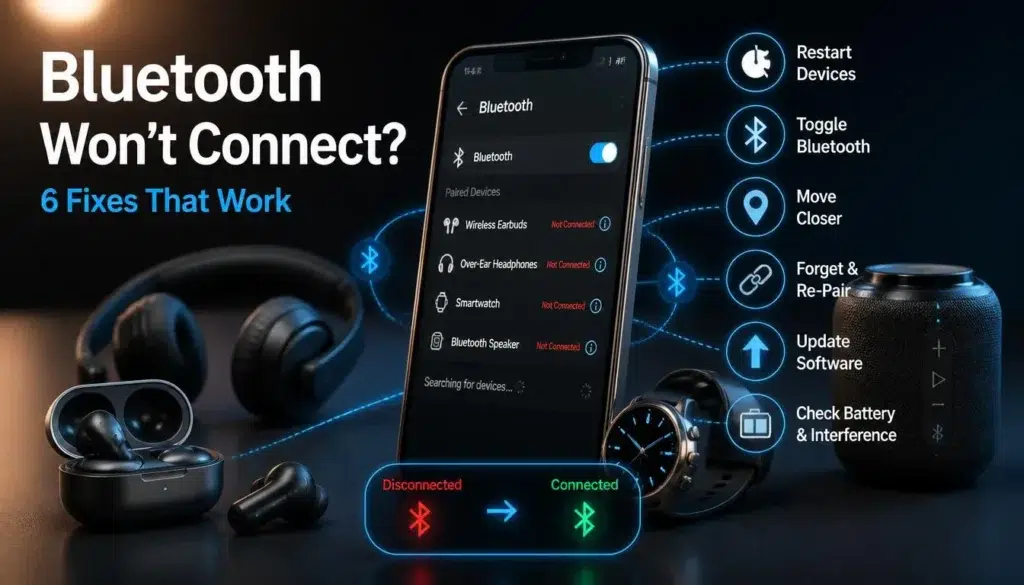
Bluetooth Won’t Connect? 6 Simple Fixes That Work
When Bluetooth won’t connect, the problem is usually smaller than it looks. A headset may still be paired to a laptop, a speaker may not be in pairing mode, or your phone may be holding on to an old connection that no longer works properly.
Before assuming your earbuds, car system, smartwatch, or phone is defective, work through the fixes below in order. These apply to Android phones, Samsung Galaxy devices, Google Pixel phones, and iPhones, and they start with the simplest solutions.
Quick Diagnosis Table
1. Turn Bluetooth Off and Back On
Start with the simplest reset. Turning Bluetooth off and back on forces your phone to scan again and can clear a temporary connection error.
On Android, swipe down from the top of the screen to open Quick Settings, tap the Bluetooth icon to turn it off, wait a few seconds, then turn it back on. You can also open Settings > Connected devices or Settings > Connections > Bluetooth, depending on the phone.
On an iPhone, go to Settings > Bluetooth, turn Bluetooth off, wait a moment, then turn it back on. The Control Center shortcut can temporarily disconnect accessories, but checking the full Settings menu is more reliable when troubleshooting a stubborn pairing problem.
Once Bluetooth is active again, wait for the accessory to appear under available devices. If it does not show up, move to the next step.
2. Put the Accessory in Pairing Mode and Charge It
Many Bluetooth devices will not appear until they’re in pairing mode. Turning on your headphones or speaker is not always enough; some accessories reconnect automatically to the last device they used instead of advertising themselves to a new phone.
Check the accessory’s manual or manufacturer support page for the correct pairing procedure. For many earbuds and speakers, you press and hold the Power or Bluetooth button until an LED flashes in a particular pattern.
Keep the phone and accessory close together while pairing. Google recommends keeping Fast Pair accessories within about 0.5 meters (1.6 feet) during setup, while Samsung advises keeping devices within roughly 30 feet for normal Bluetooth pairing.
Charge the accessory before trying again. Low battery is a frequent cause of pairing failures, especially with older earbuds, wireless keyboards, fitness trackers, and speakers that may power on but lack enough charge to maintain a stable connection.
If the device uses replaceable batteries, replace them with a fresh set. A weak battery can cause repeated disconnects that look like a phone problem.
3. Disconnect It From Other Devices
Bluetooth accessories generally connect to only one active source at a time unless they explicitly support multipoint pairing. Your earbuds may be trying to reconnect to a nearby tablet, laptop, TV, smartwatch, or another phone.
Turn off Bluetooth on nearby devices that have previously used the accessory. Alternatively, open their Bluetooth settings and disconnect or forget the accessory before attempting to pair it with your phone.
This matters most with earbuds, car systems, smartwatches, portable speakers, and wireless keyboards. If an accessory appears in your phone’s Bluetooth list but refuses to connect, another saved device is often claiming the connection first.
Some accessories support multipoint connections, but you may need to enable the feature in the manufacturer’s companion app. If you are not sure whether your device supports it, assume it can connect to only one source while troubleshooting.
4. Forget the Device and Pair It Again
A saved Bluetooth connection can become corrupted after a phone update, an accessory firmware update, a reset, or a failed connection attempt. Removing the old pairing record and starting again is one of the most reliable fixes.
On Android, open Settings > Bluetooth or Settings > Connected devices, tap the gear icon next to the accessory, then choose Forget, Unpair, or Disconnect and forget. The wording varies by manufacturer.
On a Samsung Galaxy phone, go to Settings > Connections > Bluetooth, tap the settings icon beside the device, then select Unpair. Put the accessory back into pairing mode, choose it from the available devices list, and accept the pairing request.
On iPhone, open Settings > Bluetooth, tap the information icon beside the accessory, then select Forget This Device. Confirm the choice, restart the accessory, place it in pairing mode, and pair it again.
If your car is the problem, delete the phone from the car’s Bluetooth menu and delete the car from your phone. A clean pairing on both sides is often necessary because the car may still retain the old connection record.
5. Restart Both Devices and Check for Updates
Restarting both the phone and Bluetooth accessory clears temporary processes that can prevent pairing. Switch the accessory off completely, wait 10 to 15 seconds, then turn it back on.
Restart your phone too. On Android, press and hold the Power button and choose Restart. On an iPhone, press and hold the Side button and Volume button to power off, wait about 30 seconds, then turn the phone back on.
After both devices restart, check for software updates. Android users can search Settings for Software update, while iPhone users should open Settings > General > Software Update.
Also update the accessory’s companion app if it has one. Earbuds, smartwatches, speakers, trackers, and car systems sometimes receive firmware updates through their official app, and an old firmware version can create connection or audio problems after a phone update.
For Samsung Galaxy devices, Samsung Members includes a Bluetooth diagnostic test. Open the app, select Support, choose Phone diagnostics, and run the Bluetooth check if normal pairing steps have not worked.
6. Reset Network and Bluetooth Settings
Resetting network settings is the final software step when Bluetooth will not connect to any accessory, not just one particular device. It clears saved Wi-Fi networks, Bluetooth pairings, and certain mobile-network settings, then rebuilds those connections from scratch.
On Samsung Galaxy phones, open Settings > General management > Reset > Reset Wi-Fi and Bluetooth settings. Confirm the reset, then reconnect to Wi-Fi and pair your accessories again.
On Google Pixel and many other Android phones, open Settings > System > Reset options > Reset Bluetooth and Wi-Fi. The precise wording can vary, so search Settings for “reset” if you cannot find it.
On an iPhone, open Settings > General > Transfer or Reset iPhone > Reset > Reset Network Settings. You will need to enter saved Wi-Fi passwords again afterward, and you will need to pair Bluetooth accessories from scratch.
Do not factory-reset your phone solely because one pair of earbuds will not connect. A network reset is much less disruptive and is usually enough to resolve a system-level Bluetooth configuration issue.
If Bluetooth Connects but Audio Does Not Play
A successful connection does not always mean your phone is sending sound to the right place. This is common with headphones, car systems, and Bluetooth speakers.
First, start playing audio, then open the volume controls or media output picker. Select the connected Bluetooth accessory as the output device rather than the phone speaker.
On Android, the audio-output menu may appear in the Quick Settings panel, media player notification, or volume menu. On Samsung phones, the option often appears under Media output after you swipe down to Quick Settings.
On iPhone, open Control Center, tap the AirPlay icon in the audio controls, then choose your headphones, speaker, or car system. Make sure the accessory volume is turned up as well, since it may have separate volume controls.
If phone calls work but music does not, open the Bluetooth device settings and verify that media audio is enabled. Android phones may show separate switches for calls, media, contacts, or input devices.
When the Problem Is the Accessory
If your phone pairs normally with other Bluetooth devices but one accessory still fails, the accessory is the likely source of the problem. If possible, test it with another phone, tablet, or computer.
If it will not connect to anything, fully charge it, reset it according to the manufacturer’s instructions, and check whether it needs a firmware update. Many earbuds and speakers have a separate factory-reset procedure that removes old pairings.
Compatibility matters too. Very old accessories may not support newer Bluetooth features, audio codecs, or operating-system requirements. A device that pairs successfully with another phone but not yours may need manufacturer support to confirm compatibility.
Physical damage can also cause trouble. If the accessory was dropped, exposed to moisture, has a loose charging port, or fails to hold a charge, the Bluetooth radio may not be the only part affected.
Fix Summary
FAQ
Why won’t my Bluetooth device show up on my phone?
The accessory may be turned off, out of battery, outside range, or not in pairing mode. It may also be connected to another nearby device. Charge it, disconnect it from other devices, then activate pairing mode and scan again.
Why does Bluetooth keep disconnecting from my phone?
Low battery, wireless interference, too much distance, outdated software, or a corrupted pairing record can cause repeated disconnects. Forget the device, restart both devices, and pair them again.
Why won’t my iPhone connect to Bluetooth headphones?
Make sure the headphones are charged, close to the iPhone, and in pairing mode. If they were paired before, use Settings > Bluetooth > Forget This Device, then pair them again. Apple also recommends checking whether the accessory is connected to another device and confirming that it is compatible with iPhone.
Why won’t my Samsung phone connect to my car Bluetooth?
Delete the phone from the car’s Bluetooth system and delete the car from your Galaxy phone. Restart both, place the car system in pairing mode, then create a new pairing. If it still fails, reset the phone’s Wi-Fi and Bluetooth settings and check for updates to the car’s infotainment system.
Does resetting network settings delete photos or apps?
No. Resetting network settings does not remove photos, apps, messages, or personal files. It does remove saved Wi-Fi networks, Bluetooth pairings, and some network preferences, so you will need to reconnect afterward.
When should I get professional help?
Contact the accessory manufacturer if the device fails to connect to any phone, tablet, or computer after charging and resetting it. Contact your phone manufacturer or an authorized repair provider if Bluetooth is greyed out, won’t turn on, or cannot connect to any accessory even after a network reset.
Read also: Apps Keep Crashing? 7 Fixes for Android and iPhone
Final Thoughts
When Bluetooth won’t connect, start by checking the accessory rather than assuming the phone is at fault. Make sure it is charged, close by, in pairing mode, and not connected to another device.
If that does not work, forget the old pairing, restart both devices, and reset Bluetooth settings only if the issue affects every accessory. Those six fixes resolve most Bluetooth connection problems without a factory reset or unnecessary repair.