
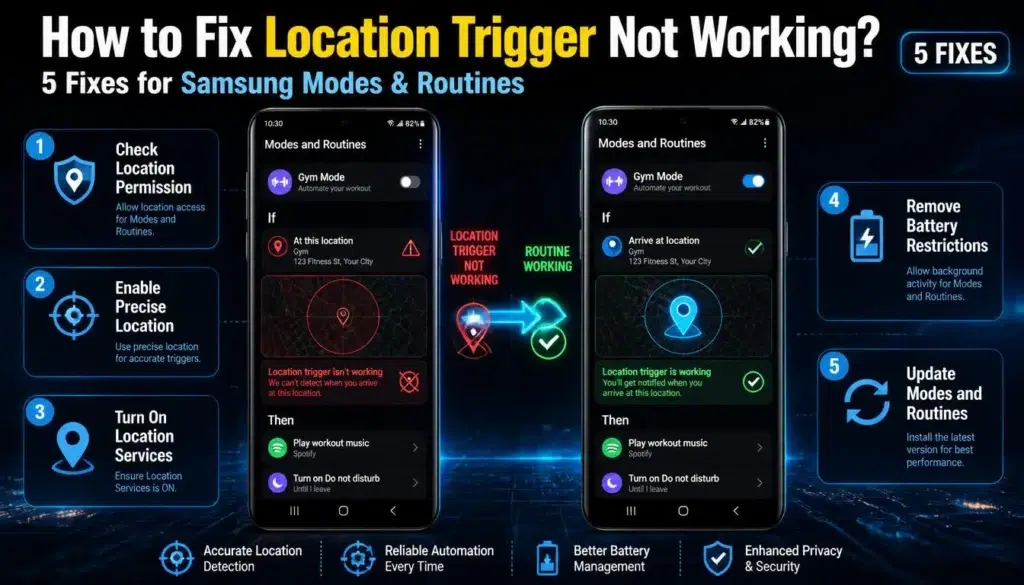
You set up a routine to turn on Wi-Fi when you get home, or to silence your phone when you reach work. For a while it worked, and then it simply stopped. If your Samsung Modes and Routines location trigger is not working, the cause is usually a setting that blocks the feature in the background, not a broken routine.
This guide explains why location-based routines fail on One UI and gives you five fixes, starting with the most common. Menu names can differ slightly between One UI versions, so use the search bar in Settings if you cannot find an option.
Quick Answer: Samsung Modes and Routines Location Trigger Not Working
- Allow location all the time: Go to Settings > Apps > Modes and Routines > Permissions > Location and choose Allow all the time. Turn on Use precise location.
- Improve location accuracy: Go to Settings > Location > Location services and turn on Google Location Accuracy.
- Remove battery limits: Make sure Modes and Routines is not in the Sleeping apps or Deep sleeping apps lists.
- Clear the Customization Service cache: Settings > Apps > Show system apps > Customization Service > Storage > Clear cache.
- Enlarge the radius: Edit the routine and make the location area bigger, or add Wi-Fi as a second trigger.
Why Your Samsung Location Routines Do Not Trigger Automatically
A location routine works by watching a virtual boundary, called a geofence, around a place such as your home or office. When you cross that boundary, the phone should run the action you chose. For this to work, the phone must keep checking your location in the background, even when the screen is off.
Three things commonly break it:
- Missing background location permission. If the app can only use your location “while using the app,” the routine cannot see you arrive or leave. Updates can also change app permissions, so it is worth checking after a major update. If you want to know what is coming next, see our guide to Samsung One UI 9.
- Battery restrictions. When One UI puts an app to sleep to save power, location checks can become slower or stop. The routine then misses your arrival or departure.
- Weak location signals. GPS is less accurate indoors. A small geofence can fail when your phone thinks you are standing outside the circle.
Samsung also notes that apps and features can be restricted by routines you set earlier, so a quick review of your routines is always a good idea. You can read the basics on Samsung’s page about using Modes and Routines.
Solution 1: Allow Location Access All the Time
This is the fix that works for most people. It lets the routine check your location while the phone is locked or in your pocket.
- Open Settings > Apps.
- Tap Modes and Routines. On older One UI versions, look for Bixby Routines.
- Tap Permissions, then Location.
- Select Allow all the time.
- Turn on Use precise location.
- Repeat the same steps for Customization Service. You may need to turn on Show system apps from the three-dot menu to see it.
After changing the permissions, restart your phone and test the routine by leaving and re-entering the location.
Solution 2: Turn On Google Location Accuracy and Scanning
GPS alone can be weak inside buildings. Using Wi-Fi and Bluetooth signals as well helps the phone notice when you arrive.
- Open Settings > Location.
- Tap Location services.
- Tap Google Location Accuracy and turn on Improve Location Accuracy.
- Go back and check that Wi-Fi scanning and Bluetooth scanning are turned on, if your phone shows these options.
Make sure the main Location switch in Quick Settings is also on. Location-based routines cannot work when location is turned off.
Solution 3: Remove Battery Restrictions for Modes and Routines
If the system puts Modes and Routines to sleep, it cannot watch your location. Samsung also recommends checking the battery settings to make sure routines are not restricted by power saving. You can find this tip on its guide to creating and managing Modes and Routines.
- Open Settings > Battery > Background usage limits.
- Check Sleeping apps and Deep sleeping apps. If Modes and Routines or Customization Service appears, remove it from the list.
- Go to Settings > Apps > Modes and Routines > Battery and choose Unrestricted.
- Turn off Adaptive battery or Put unused apps to sleep if the problem continues.
If your battery drains quickly after these changes, see our guide on what to do when your phone battery is draining fast.
Solution 4: Clear the Customization Service Cache
Customization Service is a Samsung system app that works with places and routines. Clearing its cache can remove outdated data without deleting your routines.
- Open Settings > Apps.
- Tap the filter icon and turn on Show system apps.
- Search for Customization Service and open it.
- Tap Storage, then Clear cache. Do not tap Clear data unless you are ready to set up your routines again.
- Restart your phone.
- If the routine still fails, delete it and create it again from the start.
If Modes and Routines itself behaves strangely, open the Galaxy Store and check for an app update. Samsung has released updates for the app to fix compatibility problems on some phones.
Solution 5: Enlarge the Location Radius or Add a Second Trigger
A small area can fail if your phone’s location drifts a few dozen meters. A larger area, or a second condition, makes the routine more reliable.
- Open Modes and Routines and tap your location routine.
- Tap the Location condition under If.
- If your version allows it, make the circle on the map bigger. A radius of 250 to 500 meters is a good starting point for a home or office.
- To add a backup, add a second condition: Wi-Fi connected to your home network. Set the routine to run when either condition is true, if the app asks how conditions should be combined.
A bigger radius makes the routine run earlier, so keep it small enough that it does not run when you are only walking past the place.
Still Seeing Samsung Modes and Routines Location Trigger Not Working?
If the routine still fails, try these final steps:
- Update your software. Install any pending One UI update and update Modes and Routines in the Galaxy Store.
- Check for conflicting routines. Another routine may be changing the same setting. Review your list in the Modes and Routines app.
- Review the other settings. Some One UI features can also behave unexpectedly after changes to gestures or shortcuts. See our guide on stopping Samsung Wallet from opening accidentally for an example.
- Contact Samsung. Use the Samsung Members app, go to Support, and send an error report so the support team can check your device.
Frequently Asked Questions
Will Allow all the time location access drain my battery?
The impact is usually small, because the phone checks your location in a power-efficient way. The effect depends on your phone and how many routines use location, so watch your battery usage for a day or two after changing the setting.
Why does my location routine run late after I arrive?
A late trigger usually means the system put the app to sleep or the location area is too small for your indoor signal. Try Solutions 3 and 5.
Do location routines work if Location is turned off?
No. The main Location switch must stay on for any location-based routine to work.
Will I lose my routines if I clear the Customization Service cache?
No. Clearing the cache removes temporary files only. Clearing the data of the Modes and Routines app, however, can delete your routines, so avoid that step unless you have noted down your settings.