
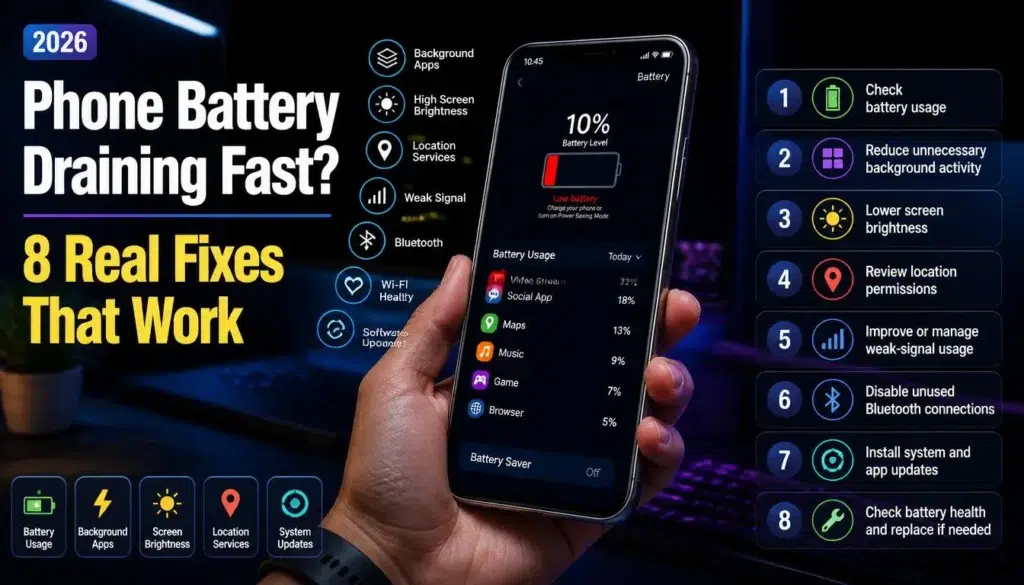
Phone Battery Draining Fast? 8 Real Fixes
A phone battery draining fast is frustrating, especially when it starts happening without any obvious change in how you use the device. The good news is that rapid battery loss usually comes from a power-hungry app, screen settings, weak signal conditions, background activity, or an aging battery — not necessarily a serious hardware fault.
This guide covers practical fixes for Android phones and iPhones, starting with the changes most likely to make a noticeable difference. If your battery life dropped immediately after a software update, give the phone a few days before assuming something is wrong; background setup, app updates, indexing, and syncing can temporarily increase power use after major updates.apple+1
Quick Diagnosis Table
1. Check Which App Is Using the Most Power
Before changing every setting on your phone, find out what is actually draining it. Android and iPhone both include battery-use dashboards that show which apps and services consumed the most charge over the past day or several days.
On most Android phones, open Settings > Battery > Battery Usage. On a Samsung Galaxy, the wording may be Settings > Battery and device care > Battery, while Google Pixel phones usually show battery statistics under Settings > Battery > Battery Usage.
On an iPhone, go to Settings > Battery and inspect the usage chart. Apple shows screen activity, background activity, and the percentage of battery used by individual apps, making it easier to spot an app that is consuming power when you are not actively using it. support.apple+1
Look for warning signs such as:
-
An app using a large percentage of battery despite limited screen time
-
High “background activity” from social media, navigation, shopping, or VPN apps
-
A game, video editor, camera app, or browser process staying active after use
-
An unfamiliar app that suddenly appears near the top of the list
If one app looks suspicious, update it first. If the drain continues, force-close it, restrict background access, or temporarily uninstall it to see whether battery life improves.
2. Lower Display Power Use
The display is one of the biggest causes of fast battery drain, particularly on larger phones with bright OLED screens and 120Hz refresh rates. Keeping brightness near maximum outdoors is sometimes unavoidable, but leaving it high indoors wastes a surprising amount of power.
Turn on adaptive or auto brightness so the display adjusts to the light around you. On Android, this is usually under Settings > Display > Adaptive brightness. iPhone users can enable Auto-Brightness through Settings > Accessibility > Display & Text Size.
A shorter screen timeout also helps. Setting the screen to turn off after 30 seconds or one minute prevents the phone from staying awake on a desk, in a pocket, or after you finish reading something.
If your phone offers a high refresh-rate option, try switching from 120Hz to 60Hz for a day. The screen may feel slightly less fluid while scrolling, but it can reduce power use, especially on older devices or phones with smaller batteries.
3. Restrict Background Activity
Many apps keep checking for messages, refreshing feeds, tracking location, uploading photos, or syncing data after you close them. That behavior is useful for a few essential apps, but there is little reason for every shopping app, game, or social network to stay active all day.
On Android, open an app’s information page, then review battery settings. You can often select Optimized or Restricted battery use for apps that do not need instant notifications. The exact wording differs between Samsung, Google Pixel, Xiaomi, OnePlus, and other Android brands.
For iPhone, go to Settings > General > Background App Refresh. Disable it completely for maximum battery savings, or turn it off only for non-essential apps.
Be selective rather than aggressive. Restricting WhatsApp, Signal, email, banking alerts, ride-hailing apps, or work tools may delay notifications, while restricting a rarely used game will usually have no downside.
4. Check Signal Strength and Network Settings
A phone uses extra energy when it struggles to maintain a cellular connection. This is common in basements, elevators, rural areas, crowded stadiums, or buildings with poor reception. The modem repeatedly works harder to find and hold a usable signal, which can drain the battery even when the screen is off.
If your battery drains quickly in one place but behaves normally elsewhere, weak reception may be the reason. Use Wi-Fi when it is reliable, particularly at home or work, because it can reduce the need for constant cellular searching.
You can also try these changes:
-
Turn on Airplane Mode temporarily in areas with no usable signal
-
Use 5G Auto or Smart Data instead of forcing 5G at all times
-
Disable mobile hotspot when you are finished using it
-
Turn off Bluetooth, NFC, or Wi-Fi scanning if you do not need them
-
Disable a VPN temporarily to check whether it is maintaining a constant connection
Do not permanently turn off every wireless feature. The goal is to identify a service that is working harder than it needs to, not to make the phone less useful.
5. Restart the Phone and Install Updates
A restart remains one of the most effective fixes for temporary battery drain. It can stop a stuck background process, clear a connectivity issue, and force apps to reload cleanly.
After restarting, update your operating system and installed apps. Android and iOS updates often include bug fixes and optimizations, while developers regularly patch apps that cause abnormal battery drain.
If the problem began immediately after a major update, give the phone a few days to settle. Apple notes that indexing, resource downloads, and app updates can temporarily affect battery life and heat after an update.apple+1
If battery drain lasts longer than several days after the update, check whether a particular app was also updated around the same time. Installing a new version, clearing an Android app’s cache, or reinstalling the app can resolve the issue.
6. Use Battery Saver or Low Power Mode
Battery Saver on Android and Low Power Mode on iPhone reduce background activity, lower performance in some situations, limit mail fetching, and shorten certain visual effects. They aren’t a permanent fix for a failing battery, but they can help the phone last through a long day.
On Android, Battery Saver is typically found under Settings > Battery > Battery Saver. Many phones also let you schedule it to activate automatically at 20% or 30%.
On iPhone, open Settings > Battery and enable Low Power Mode. You can also add the control to Control Center for faster access.
Use these modes as a diagnostic tool too. If battery life improves dramatically with Battery Saver enabled, background tasks, high refresh rate, display brightness, or poor signal conditions are more likely than a sudden physical battery failure.
7. Review Location, Notifications, and Always-On Features
Location services are essential for maps, delivery tracking, weather alerts, ride-hailing, and emergency features. Yet not all apps need access to your location every minute of the day.
Review location permissions and change unnecessary apps to While Using the App rather than Always. On iPhone, go to Settings > Privacy & Security > Location Services. Android users can check permissions through Settings > Location > App location permissions.
Notifications also drain battery because they wake the screen, activate the network, and sometimes trigger vibration. Remove alerts from apps that do not need immediate attention, especially shopping apps, games, social platforms, and promotional services.
An always-on display can have a modest but real battery cost, depending on the phone and wallpaper. If you are troubleshooting a phone that drains fast, turn it off for a day or two and compare the results.
8. Check Battery Health and Replace the Battery When Needed
Every rechargeable lithium-ion battery loses capacity over time. A phone that once lasted all day may eventually need a top-up by late afternoon, even if your habits haven’t changed.
iPhone users can check this under Settings > Battery > Battery Health & Charging. Apple provides a maximum-capacity reading and may display a service message when the battery can no longer support normal performance.apple+1
Some Android manufacturers now provide battery-health information directly in Settings or through their device diagnostics tools. Availability varies by model, so if your phone does not show a percentage, contact the manufacturer or an authorized repair provider for a battery assessment.
Battery replacement is usually more economical than replacing an otherwise functional phone. If the device gets unusually hot, shuts down before reaching 0%, swells, or has a damaged battery, stop using it and arrange professional service immediately.
Fix Summary
FAQ
Why is my phone battery draining fast all of a sudden?
A newly installed app, a software update, a weak cellular signal, background syncing, or a bugged process can cause sudden battery drain. Start by checking the battery usage screen to identify whether one app or system service is consuming unusual power.
Does closing all apps save battery?
Not always. Modern Android and iPhone software manages paused apps efficiently, and repeatedly force-closing apps can sometimes use more power when they must reload from scratch. Close or restrict apps only when they show unusually high background activity or become unresponsive.
Why does my phone battery drain faster after an update?
After a major update, the phone may index files, optimize apps, download resources, and resync cloud data. This can temporarily affect battery life and temperature for several days. If it continues beyond that period, inspect battery usage and update your apps.
Is fast battery drain a sign of malware?
It can be, but it is not the most common cause. An unfamiliar app with unusually high battery use, data use, permissions, or persistent pop-ups deserves attention. Uninstall suspicious apps, run your phone’s built-in security tools, and keep the operating system updated.
Should I charge my phone to 100% every time?
You can charge to 100% when you need the extra runtime. For long-term battery care, many phones offer optimized charging or charge-limit settings that reduce time spent at full charge, which can help preserve battery capacity over time.apple+1
When should I replace my phone battery?
Consider replacement if battery health is significantly reduced, the phone shuts down unexpectedly, the charge percentage drops in large jumps, or the battery swells. A professional diagnostic check is especially important if the device overheats or the case starts to separate.
Read also: Xiaomi Battery Technology: What’s New in 2026
Final Thoughts
When your phone battery drains fast, start with the battery usage screen instead of installing random “battery saver” apps. In most cases, a problematic app, a bright display, poor signal, background activity, or a recent software change explains the problem.
If none of the eight fixes improves battery life, check battery health and contact an authorized repair provider. A degraded battery is normal after years of charging, and replacing it can give an otherwise capable phone a second life.