

Apps Keep Crashing on Your Phone? 7 Fixes
When apps keep crashing, even simple tasks like checking email, opening a banking app, or replying to a message become frustrating. The app may freeze, close without warning, return you to the home screen, or show an “App keeps stopping” message.
Most app crashes are caused by a temporary software glitch, corrupted cached files, outdated software, low storage, an unstable internet connection, or a broken app update. You can usually fix the issue without resetting the phone or losing personal data.
Quick Diagnosis Table
1. Force-Close the App and Open It Again
The quickest fix is also the most commonly overlooked. An app can get stuck in the background after a connection error, a failed upload, a broken notification, or a temporary memory problem.
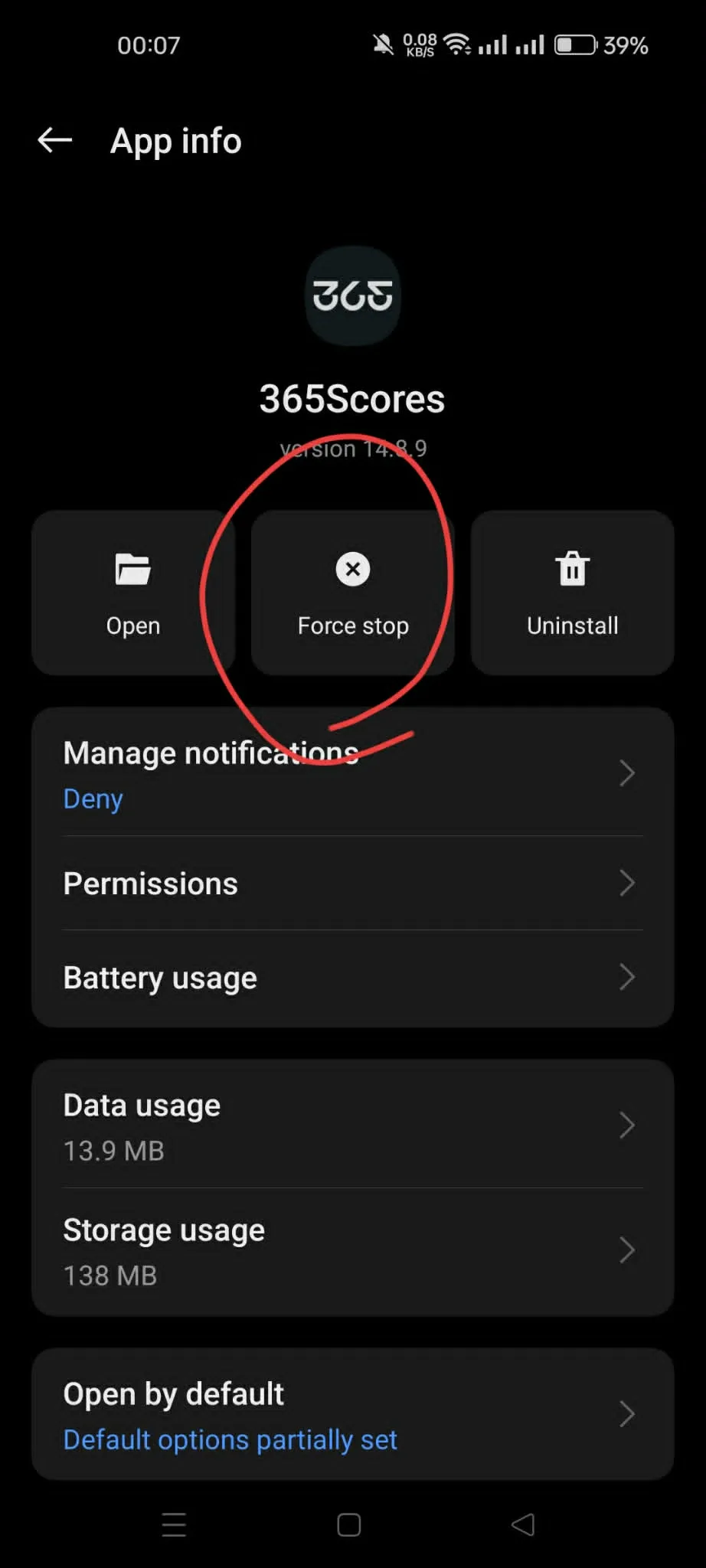
On Android, open Settings > Apps, select the crashing app, and tap Force stop. Confirm the prompt, then return to the home screen and open the app again.
On an iPhone, swipe up from the bottom of the screen and pause to open the App Switcher. If your iPhone has a Home button, double-press it instead. Find the affected app, swipe up on its preview to close it, then reopen it.
Do not force-close every app on your phone as a daily habit. Modern phones manage background apps efficiently, and repeatedly closing healthy apps may make them use more power when they reload.
2. Restart Your Phone
A full restart can clear temporary memory conflicts and background processes that affect multiple apps. It is especially useful if multiple apps have started crashing, the phone feels unusually slow, or the issue appeared after an update.

On most Android phones, press and hold the Power button, then choose Restart. If the device is frozen, hold the Power button for around 20 seconds until it restarts.
For iPhone X and later, hold either Volume button and the Side button until the power-off slider appears. Turn the phone off, wait about 30 seconds, then hold the Side button until the Apple logo appears.
After restarting, open the app before launching several other apps. If it works normally now, the crash was likely caused by a temporary process rather than a permanent software problem.
Read also: Phone Keeps Restarting? Causes and Fixes to Try
3. Update the App
Developers frequently release fixes for crashes, login problems, slow performance, and compatibility issues. If an app started crashing shortly after a phone update or after a recent change inside the app, check for a newer version first.
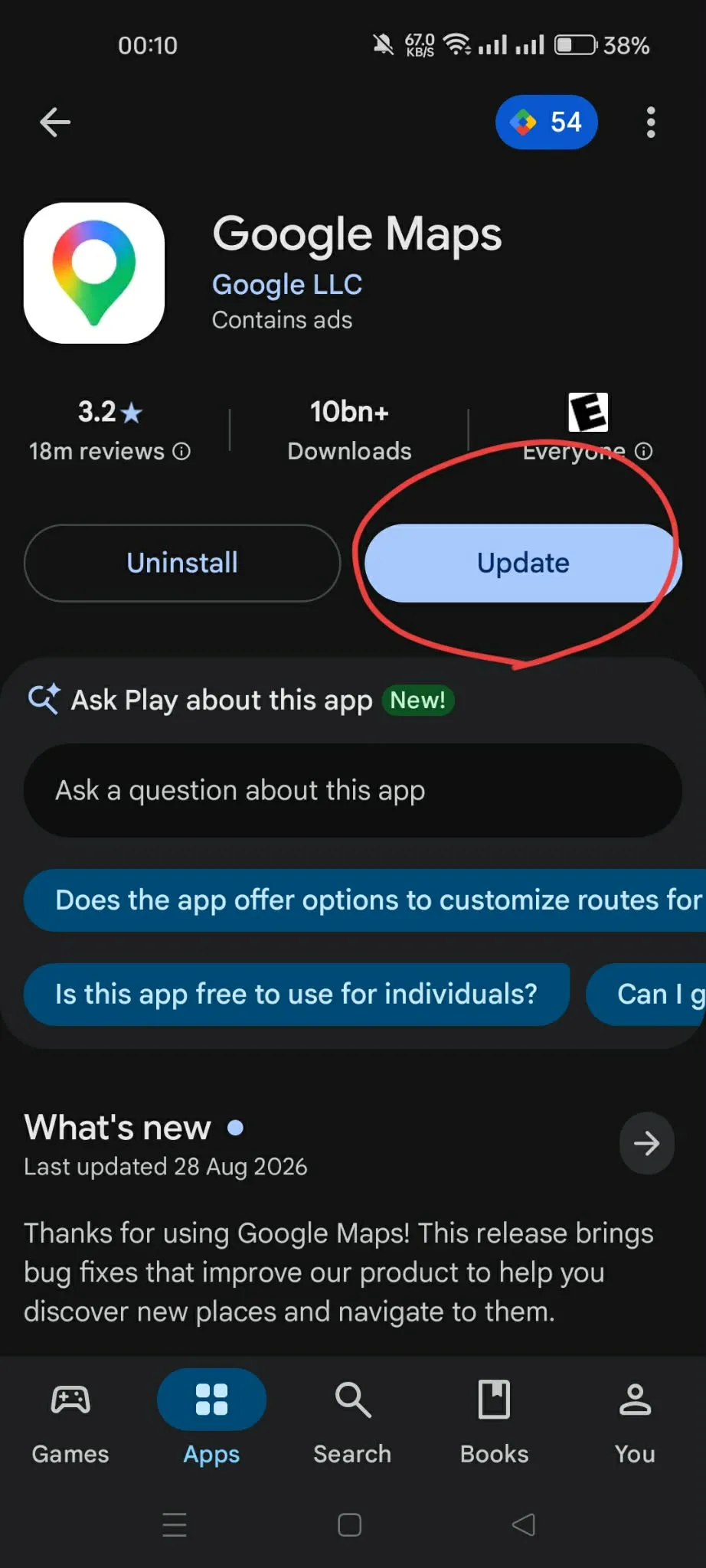
On Android, open the Google Play Store, tap your profile icon, choose Manage apps & device, and look under Updates available. Update the affected app or install all available updates.
Samsung Galaxy users should also check the Galaxy Store. Some Samsung apps and services receive updates there instead of through Google Play.
On iPhone, open the App Store, tap your profile picture, and scroll to available updates. Install the update for the app that keeps closing.
If no update is available, the problem may be temporary or related to the app’s own servers. Check whether the app works on another phone or through its website before changing major phone settings.
4. Clear the App Cache on Android
Cached data consists of temporary files that help an app load faster. When those files become corrupted, incomplete, or outdated, the app may crash, freeze, or fail to open.
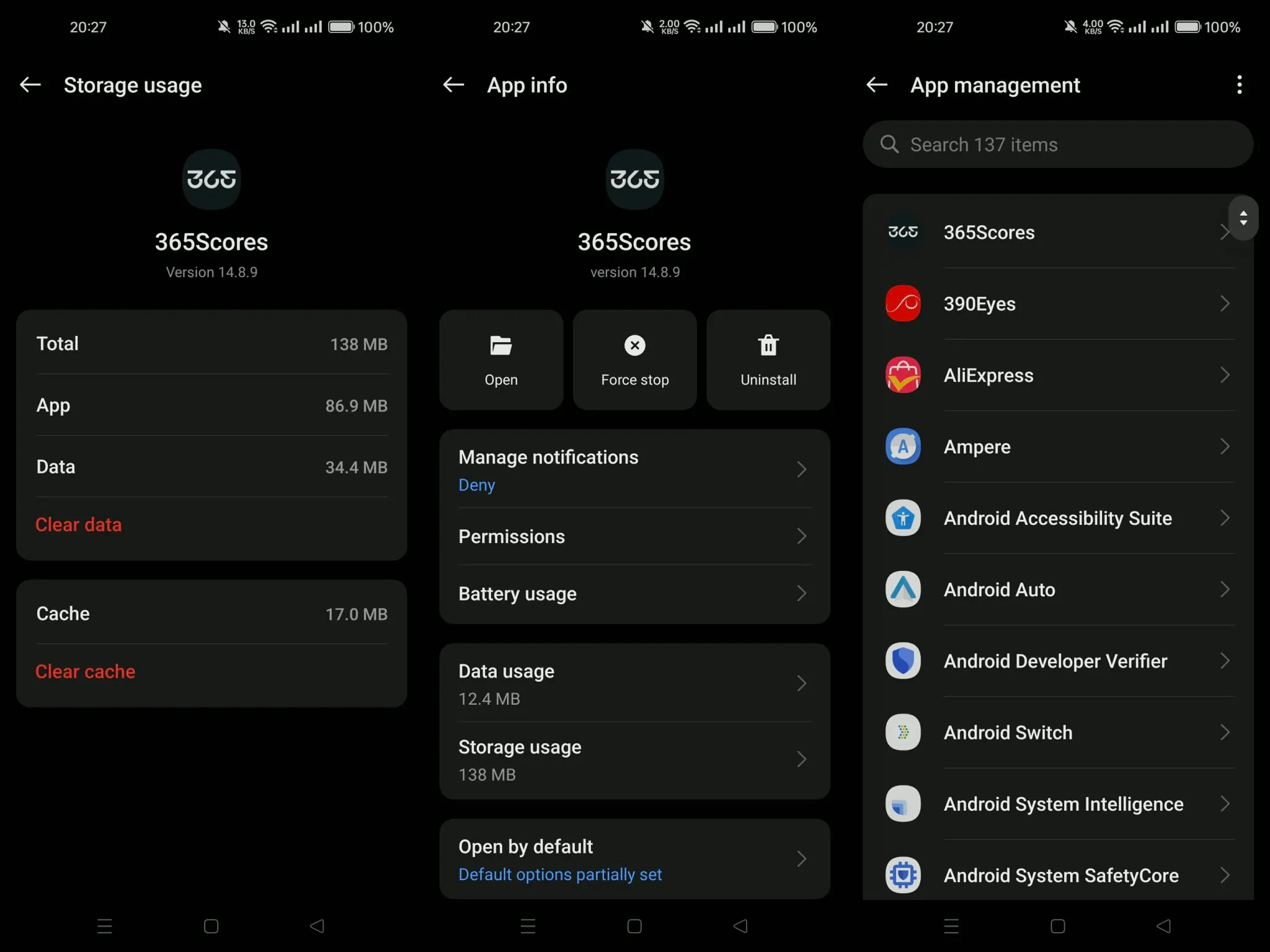
On Android, go to Settings > Apps > See all apps, choose the crashing app, and select Storage & cache. Tap Clear cache, then reopen the app.
This does not normally delete your account, messages, saved settings, or personal files. It only removes temporary data that the app can recreate.
If clearing the cache doesn’t help, you can try Clear storage or Clear data. Treat this as a later step because it may sign you out, delete offline downloads, reset app settings, and remove locally stored information.
iPhone does not offer a universal cache-clearing menu for every app. The closest equivalent is often removing and reinstalling the app, although some apps provide their own cache or download controls inside their settings.
5. Check Your Internet Connection and App Permissions
Some apps appear to crash when they are actually failing to load online content. Banking apps, social networks, cloud storage, streaming services, maps, and shopping apps can stop responding if the network is unstable.
Switch from Wi-Fi to mobile data, or from mobile data to Wi-Fi, then try again. If the app works on one connection but not the other, reboot your router, forget and reconnect to the Wi-Fi network, or check whether a VPN is interfering with the connection.
Permissions can also cause problems. A camera app may close if camera permission is denied, while a navigation or delivery app can become unreliable if location access is blocked.
On Android, go to Settings > Apps > App name > Permissions. On iPhone, open Settings, scroll to the app, and check whether it has access to the camera, microphone, photos, mobile data, location, or notifications it needs.
Grant only the permissions that make sense for the app. If a basic calculator requests access to your contacts or microphone, that is a reason to question the app rather than approve every permission.
6. Free Up Storage and Update Your Phone
Apps need free storage for temporary files, updates, downloads, databases, photos, and crash recovery. A nearly full phone can become slow, unstable, and more likely to close apps unexpectedly.
On Android, open Settings > Storage. On iPhone, go to Settings > General > iPhone Storage. Remove old downloads, large attachments, offline videos, unused apps, and duplicate files until you have enough free room to work comfortably.
Then check for a system update. On Android, open Settings > System > Software update, or search Settings for “update.” On iPhone, go to Settings > General > Software Update.
Google recommends checking both Android updates and app updates when an installed app crashes or fails to respond. Apple similarly advises updating the app first, then installing the latest iOS version if no app update is available.apple+1
If many Android apps crash at the same time, update Android System WebView, Google Play services, and the Google app through Google Play. These components support web content, sign-in tools, notifications, and other functions used across many apps.
7. Reinstall the App
Reinstalling removes the app package and replaces it with a fresh copy. It is one of the most effective solutions when a single app keeps crashing after force-closing, updating, and clearing its cache.
Before uninstalling, make sure important information is synced. Messaging apps, note-taking tools, games, document editors, and photo apps may contain local data that is not automatically backed up.
On Android, press and hold the app icon, tap App info, then choose Uninstall. You can also remove it from Google Play. After uninstalling, restart the phone, then download the app again from the official store.
On iPhone, touch and hold the app icon, tap Remove App, and choose Delete App. Download it again from the App Store, sign in, and test whether it works.
Avoid downloading unofficial APK files or modified app versions from random websites. They can introduce security risks, malware, broken updates, and additional crash problems.
If Google Apps Keep Crashing on Android
A crash involving the Google app, Google Discover, Gmail, Chrome, Google Maps, or another Google service can sometimes affect several parts of an Android phone. In that situation, focus on Google’s system components rather than reinstalling every affected app.
Try these steps in order:
-
Update the Google app through Google Play.
-
Update Android System WebView and Google Play services.
-
Go to Settings > Apps > Google > Storage & cache, then tap Clear cache.
-
Force-stop the Google app and restart the phone.
-
If the issue continues, clear Google app storage or uninstall its updates, then update it again through Google Play.
Samsung also recommends checking Google app storage and force-stopping the app when Android apps repeatedly crash. This can help when Google Search, Discover, Assistant-related features, or apps that rely on Google services are unstable.
Fix Summary
FAQ
Why do my apps keep crashing all of a sudden?
A recent app update, a phone software update, low storage, a corrupted cache, a weak internet connection, or a temporary server issue can trigger sudden crashes. Start by checking whether one app is affected or several apps are failing.
Why do multiple apps keep crashing on Android?
Multiple crashes often point to a system-level issue rather than one bad app. Restart the phone, check free storage, install Android updates, and update Android System WebView, Google Play services, and the Google app.
Does clearing cache delete app data?
No, clearing cache usually removes only temporary files. Clearing storage or app data is different: it can sign you out, reset settings, and remove downloads or locally saved information.
Why does an app keep crashing after I update it?
The new version may contain a bug, may not work properly with your phone’s current operating system, or may have installed incorrectly. Restart the phone, clear the cache on Android, and check for another update. Reinstalling the app can also help.
Should I factory-reset my phone if apps keep crashing?
Not at first. A factory reset is a last resort because it removes apps, settings, files, and accounts. Try the seven fixes above first. If many apps still crash after system updates, storage cleanup, and a clean reinstall, back up your phone and consider a reset or professional support.
What should I do if only my banking app crashes?
Check for an app update, confirm your phone’s date and time are set automatically, disable any screen-overlay tools or unofficial app modifications, and make sure the phone isn’t rooted or running unsupported software. If the problem continues, contact the bank through its official support channel before trying repeated logins.
Final Thoughts
When apps keep crashing, begin with the least disruptive fixes: force-close the app, restart the phone, and install available updates. Those steps solve many temporary app problems without deleting anything.
If the issue persists, clear the cache on Android, check storage and permissions, and reinstall the problem app from the official store. Persistent crashes across many apps may point to a wider software issue, while a crash affecting only one app may require help from that app’s developer.