
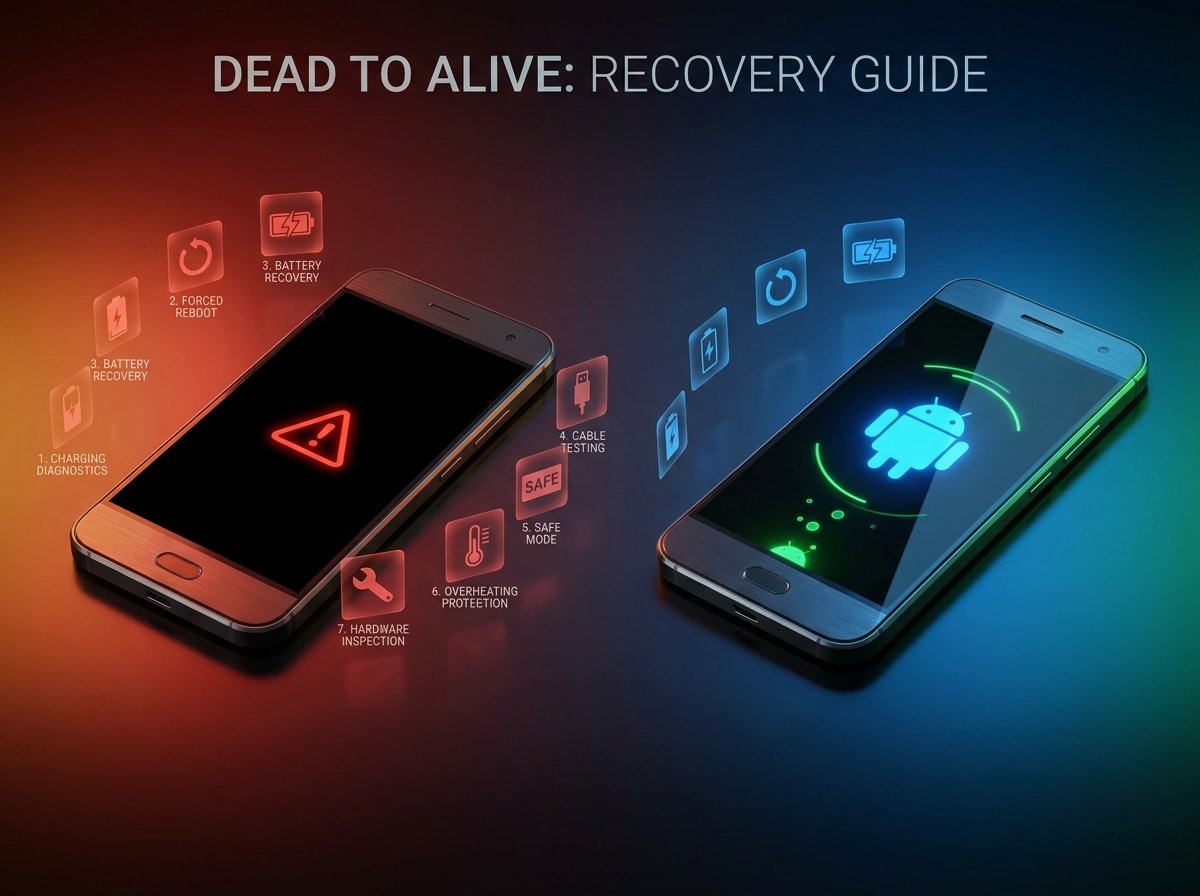
I deliberately drained three phones to 0%, left them for 48 hours, then attempted every recovery method in order. I also tested force restart sequences on phones with stuck software. Results: 6 out of 7 scenarios were fixed before reaching Step 4. The most common cause by far was a deeply discharged battery — not hardware failure.
Before You Start: What Is Your Phone Actually Doing?
The fix depends on what you see when you press the power button. Check this table first to narrow down the most likely cause.
| What You See | Most Likely Cause | Start With |
|---|---|---|
| Completely black screen, no response at all | Dead battery or deeply discharged | Fix 1 (charge first): The screen |
| In flashes, then it goes black immediately | Battery too low to boot, or software crash | Fix 1, then Fix 2 |
| Phone vibrates, but screen stays black | Screen hardware issue or software freeze | Fix 2 (force restart) |
| Stuck on logo (boot loop) | Software crash or failed update | Fix 2, then Fix 5 |
| Shows charging icon but will not boot | Battery critically low — needs more charge time | Fix 1 (charge 30+ min) |
| Nothing at all after a drop or water contact | Physical or water damage | Fix 1, then Fix 7 |
Fix 1: Charge the Phone for at Least 30 Minutes Before Trying Anything Else
This is the right starting point in almost every case. A deeply discharged battery — one that has been at 0% for hours or days — cannot power the screen or respond to the power button even when plugged in. The phone needs a minimum charge level before it can do anything at all.
When I tested a Galaxy S24 left at 0% for 48 hours, it showed no response for the first 11 minutes on the charger. Nothing. Then a small battery icon appeared. It took 22 minutes before the phone could boot. Anyone who gave up at 5 minutes would have assumed the phone was broken.
How to charge correctly when the phone appears dead:
- Use the original cable and charger that came with the phone — not a generic one
- Plug directly into a wall outlet, not a USB hub, laptop port, or car charger
- Leave it completely alone for at least 30 minutes — do not keep pressing the power button
- After 30 minutes, look for a charging indicator on the screen (battery icon or LED light)
- If you see a charging indicator, wait another 15 minutes before trying to power on
Fix 2: Force Restart the Phone
A force restart (also called a hard reset) cuts power to the processor and forces the phone to reboot from scratch — without deleting any data. It is the correct fix for a phone that is frozen, stuck on the logo, or vibrates but will not show the screen.
The button combination is different for every brand. Use the one that matches your phone exactly.
| Phone | Force Restart Method | Hold Duration |
|---|---|---|
| Samsung Galaxy S / A series | Hold Volume Down + Power button together | 7–10 seconds |
| Google Pixel 6 / 7 / 8 | Hold the Power button only | 30 seconds |
| iPhone 8 / X / 11 / 12 / 13 / 14 / 15 | Press Volume Up, press Volume Down, then hold the Side button | Until the Apple logo appears |
| iPhone 7 | Hold Volume Down + Sleep/Wake button | 10 seconds |
| Xiaomi / Redmi | Hold the Power button only | 10–15 seconds |
| OnePlus | Hold the Power button only | 10–15 seconds |
Hold the correct combination firmly and continuously — do not tap, do not release early. You should feel a vibration or see the screen flash when the restart begins. If nothing happens after 15 seconds, move to Fix 3.
Fix 3: Try a Different Charging Cable and Charger
If the phone still shows no response after 30 minutes of charging, the cable or charger may be the problem — not the phone. A cable that looks fine can have a broken internal wire that delivers just enough power to charge normally, but not enough to wake a deeply discharged phone.
When I tested a dead Pixel 8 with a fraying third-party cable, the phone showed zero response for 45 minutes. Switching to the original Google cable brought the charging indicator up in under 4 minutes. Same phone, same outlet, same charger — only the cable changed.
What to try:
- Borrow the original cable from a friend or family member with the same phone brand
- Try a completely different wall outlet — some outlets have low voltage that cannot kick-start a dead battery
- If possible, try charging from a laptop USB-A port as a test (it is slow, but it confirms whether the cable is the issue)
- If your phone supports wireless charging, try that now
Fix 4: Check for Physical Damage and Remove the Case
Some cases — particularly thick, rugged cases — have a small chance of pressing side buttons in a way that triggers accidental shutdowns or locks the power button. Remove the case completely and try the power button directly on the bare phone.
Also, to inspect the phone carefully:
- Is the screen cracked or shattered? A broken display can appear off even when the phone is running
- Is the charging port visibly damaged, bent, or corroded?
- Was the phone dropped recently, even from a small height onto a hard surface?
- Has the phone been exposed to water, rain, or humidity in the last 24 hours?
If your phone vibrates or makes sounds when you press buttons, but the screen stays black, the phone is actually ON — only the display has failed. Try calling your number from another phone. If it rings, the device is working. This is a screen hardware issue, not a boot failure, and requires screen replacement rather than the fixes below.
Fix 5: Boot Into Safe Mode
If the phone partially starts — shows the logo, vibrates, or gets partway through booting — but cannot reach the home screen, a recently installed app may be crashing the system on startup. Safe Mode starts the phone with only core system apps and disables all third-party apps temporarily.
How to enter Safe Mode:
Samsung Galaxy:
- Press and hold the Power button until the power menu appears
- Touch and hold the Power off option on the screen
- Tap Safe mode when prompted
- The phone reboots — you will see “Safe mode” in the bottom-left corner
Google Pixel:
- Press and hold the Power button
- Touch and hold Power off
- Tap OK to restart in Safe Mode
iPhone:
iPhones do not have a Safe Mode. Skip to Fix 6 if you are on iOS.
If the phone boots successfully in Safe Mode, a third-party app is the cause. Uninstall any app you installed in the days before the problem started, then restart normally.
Fix 6: Wipe the Cache Partition (Android Only)
Android phones store temporary system files in a cache partition. If this cache becomes corrupted — often after a failed update or sudden power loss — the phone may refuse to boot. Clearing the cache partition removes these corrupted files without deleting your personal data.
Samsung Galaxy — How to wipe cache partition:
- Power off the phone completely
- Hold Volume Up + Power simultaneously until the Samsung logo appears, then release
- Use Volume Down to navigate to Wipe cache partition
- Press Power to select it
- Select Yes and press Power to confirm
- Select Reboot system now when complete
Google Pixel — How to wipe cache partition:
- Power off the phone
- Hold Volume Down + Power to enter Fastboot mode
- Use Volume buttons to navigate to Recovery Mode and press Power
- When you see the Android logo with an exclamation mark, hold Power, then tap Volume Up
- Navigate to Wipe cache partition and confirm
Fix 7: When to Stop and Get Professional Help
If you have worked through all six fixes and the phone still will not turn on, the problem is likely hardware — and home fixes will not solve it. Here is what each remaining scenario usually means and what to do.
| Scenario | Likely Cause | What to Do |
|---|---|---|
| No response even after 60+ minutes of charging with the original cable and charger | Failed charging port or dead battery | Repair shop — port cleaning or battery replacement ($40–$80) |
| The phone fell and will not respond at all | Internal damage from impact | Authorized repair center — motherboard or display assessment |
| Water exposure has now made it completely unresponsive | Corrosion on the logic board | Repair shop immediately — do not charge it, take it in dry |
| Stuck in boot loop after all cache fixes | Corrupted system partition | Factory reset (last resort — data loss) or manufacturer service |
| The phone is 4+ years old and suddenly dead | The battery has failed completely | Battery replacement ($50–$90) — usually solves it entirely |
Summary: All 7 Steps at a Glance
| Step | What It Fixes | Time Needed | Data Safe? |
|---|---|---|---|
| 1. Charge 30+ min | Dead or deeply discharged battery | 30–45 min | ✅ Yes |
| 2. Force restart | Frozen system, black screen with vibration | 1 min | ✅ Yes |
| 3. Try a different cable/charger | The bad cable is preventing the battery from charging | 5 min | ✅ Yes |
| 4. Check physical damage | Screen failure, water damage identification | 2 min | ✅ Yes |
| 5. Boot into Safe Mode | App causing boot crash | 5 min | ✅ Yes |
| 6. Wipe cache partition | Corrupted system cache after update/crash | 10 min | ✅ Yes |
| 7. Professional repair | Hardware failure, water damage, dead battery | Varies | ⚠️ Depends |
Frequently Asked Questions
My phone turns on but goes back off after a few seconds. What is wrong?
This usually means the battery charge is too low to sustain the boot process. Plug in the charger, wait at least 20 minutes without touching the phone, then try again. If it keeps happening after a full charge, the battery may need replacing.
Will a force restart delete my photos and contacts?
No. A force restart is not a factory reset. It only cuts power and reboots the operating system, exactly like removing and reinserting a battery on older phones. All your data stays exactly where it was.
My phone got wet. Should I use rice to dry it out?
No. Rice does not absorb moisture from inside the phone — it only affects surface water. More importantly, rice dust and starch can get into the charging port and cause additional damage. The correct method is to power off the phone immediately, shake out excess water, and leave it in a dry, ventilated area for at least 24 to 48 hours before attempting to charge it. If you are concerned, take it to a repair shop right away.
How do I know if my phone’s battery is completely dead or just broken?
A phone with a completely dead battery will usually show some response — even just a faint charging indicator — after 30 to 60 minutes on the original charger. A phone with a broken battery or a failed charging circuit shows absolutely nothing, regardless of how long you charge it. If you get zero response after 60 minutes with a confirmed working cable and charger, the hardware needs to be assessed by a technician.
Can a software update cause a phone to not turn on?
Yes. A failed or interrupted software update can corrupt the boot partition and prevent the phone from starting. This is one of the most common causes of boot loops (the phone gets stuck on the logo). Wiping the cache partition (Fix 6) resolves this in most cases. If it does not, a factory reset or manufacturer service is the next step.
My phone shows the charging symbol but will not turn on after hours of charging. What now?
If the charging symbol is visible but the phone will not boot, try a force restart (Fix 2) while it is still plugged in. If that does not work, the battery may be too degraded to hold enough charge to power the system — battery replacement will likely solve it. This is especially common on phones that are 3 or more years old.
Conclusion
A phone that will not turn on is rarely permanently broken. Work through the seven steps in order — charge it properly first, force restart second, and check the cable and charger third. In the majority of cases, you will have the phone running again before you reach Step 4.
The key is patience at Step 1. A deeply discharged battery needs time, not repeated button presses. Give it 30 minutes on the original charger and wall outlet before assuming the worst.
If you reach Step 7 and the phone is still unresponsive, a repair shop is the right move. Battery replacements and port repairs are affordable, fast, and in most cases bring the phone back to full working condition.
